
A Cash App family account is officially a sponsored account: a parent or guardian with a verified Cash App account sponsors a teen aged 13 to 17, who gets their own app access under the parent’s oversight. Cash App also offers managed accounts for children aged 6 to 12, which the parent controls entirely. Here is what each tier includes, how to set one up, the controls parents get, and how to remove a family member when the time comes.
What are the requirements for a Cash App sponsored account?
Four conditions must be met before a teen can use Cash App:
- The parent or guardian must have their own verified Cash App account.
- The teen must be 13 to 17; the sponsor approves the account.
- Both the parent’s and the teen’s legal name and date of birth are verified.
- The sponsor is responsible for the activity of every account they sponsor.
For children aged 6 to 12, Cash App offers managed accounts instead: the parent holds full control and the child has no direct app access. Whether a young person can use the app at all is covered in our guide to Cash App for minors.
How do you set up a Cash App family account?
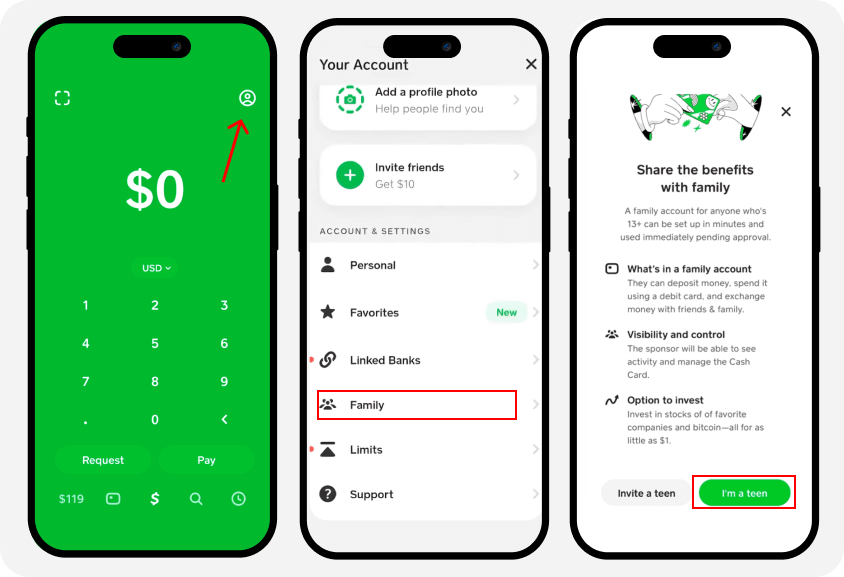
The request starts from the teen’s side and the sponsor approves it:
- Download Cash App on the teen’s phone.
- Tap the profile icon, then tap Family.
- Tap “I’m a teen” and enter the required information.
- Tap Select sponsor and search for the parent’s account.
- Tap Send to submit the request; the parent approves it from their app.
How does the parent verify their identity?
No one under 18 can create a verified Cash App account on their own, so the sponsor verifies as the account owner with their full legal name, date of birth, a government-issued photo ID, and the last four digits of their SSN. The sponsor submits these documents, never the teen.
How do you add family members?
After verifying, the sponsor can add members: select Family Members, tap Add Member, and invite them or enter their phone number.
What controls does the parent get?
The sponsor controls the sponsored account’s settings from their own app:
- Spending limits. Restrict spending per day, week, or month, and adjust the caps anytime. Sponsored accounts also run on lower built-in limits than adult accounts, listed in our guide to Cash App limits.
- Transaction monitoring. View the teen’s transactions and balances in real time.
- Fund transfers. Send money instantly between the sponsor and sponsored accounts, useful for allowances and shared expenses.
How do you remove a family member from Cash App?
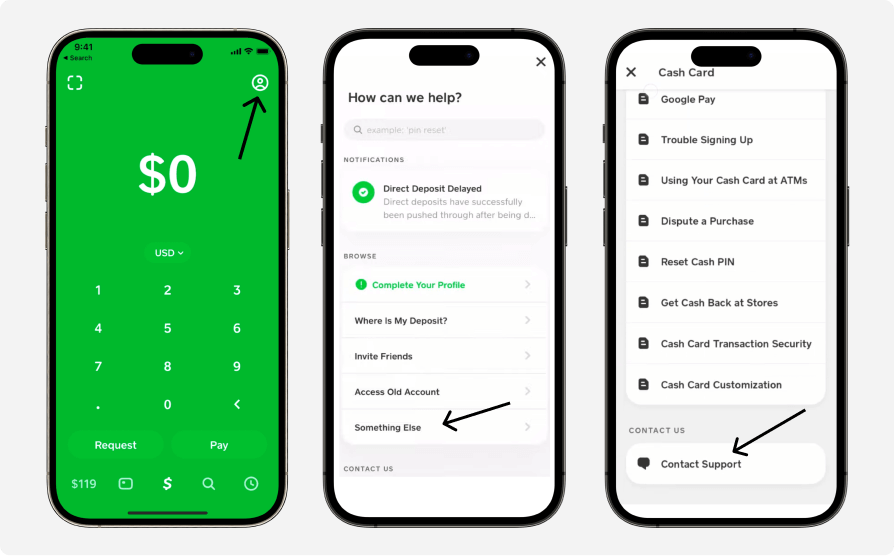
To remove a family member, the sponsor cancels the sponsorship, and Cash App handles the removal through its support team rather than a delete button in the app.
- Have the teen spend or transfer any remaining balance first, since the account loses functionality once sponsorship ends.
- Open Cash App and tap your profile icon, then Support (or Contact Support).
- Choose “Not About a Transaction,” then Chat, to open a live chat with Cash App support.
- Tell the associate you want to cancel a sponsorship and remove the family member, and confirm the account details they ask for.
Only the sponsor who approved the account can request the removal. Once the sponsorship ends, the teen’s account loses payments, the card, and direct deposit until they either get a new sponsor or turn 18 and verify their own identity. A sponsor can cancel a sponsorship at any time.
What features does a Cash App family account include?
- Instant transfers between family members, with no annual or maintenance fees.
- Recurring allowance payments on a schedule, so the teen’s allowance arrives automatically.
- Real-time monitoring of the teen’s activity from the sponsor’s app.
- Investing and Bitcoin with approval. Teens can access stocks and Bitcoin only if the sponsor enables it, and given the risk, that access deserves active supervision.
- A customizable Cash App Card. Teens can design their own Cash App Card and use instant discounts on purchases.
How safe is a Cash App family account?
- FDIC pass-through insurance. Balances are covered up to $250,000 through Cash App’s partner banks for eligible accounts, including sponsored accounts with a Cash App Card.
- Fraud protection. Encryption plus built-in fraud detection that alerts users to suspicious activity.
- Support. In-app chat or Cash App’s contact page; sponsors can get help on any account they sponsor.
Key takeaways
- The official product is a sponsored account: teens 13 to 17 under a verified adult sponsor.
- Kids 6 to 12 get managed accounts, fully controlled by the parent.
- The sponsor verifies identity, approves the account, and is responsible for its activity.
- Parents set spending limits, monitor transactions, and can enable or block investing.
- Removal goes through Cash App support: the sponsor cancels the sponsorship, and the teen’s account loses access until re-sponsored or 18.